

scale(76.8)'/%3e%3cuse%20xlink:href='%23cn-a'%20width='30'%20height='20'%20transform='rotate(-121%20142.6%20-47)scale(25.5827)'/%3e%3cuse%20xlink:href='%23cn-a'%20width='30'%20height='20'%20transform='rotate(-98.1%20198%20-82)scale(25.6)'/%3e%3cuse%20xlink:href='%23cn-a'%20width='30'%20height='20'%20transform='rotate(-74%20272.4%20-114)scale(25.6137)'/%3e%3cuse%20xlink:href='%23cn-a'%20width='30'%20height='20'%20transform='matrix(16%20-19.968%2019.968%2016%20256%20230.4)'/%3e%3c/svg%3e)
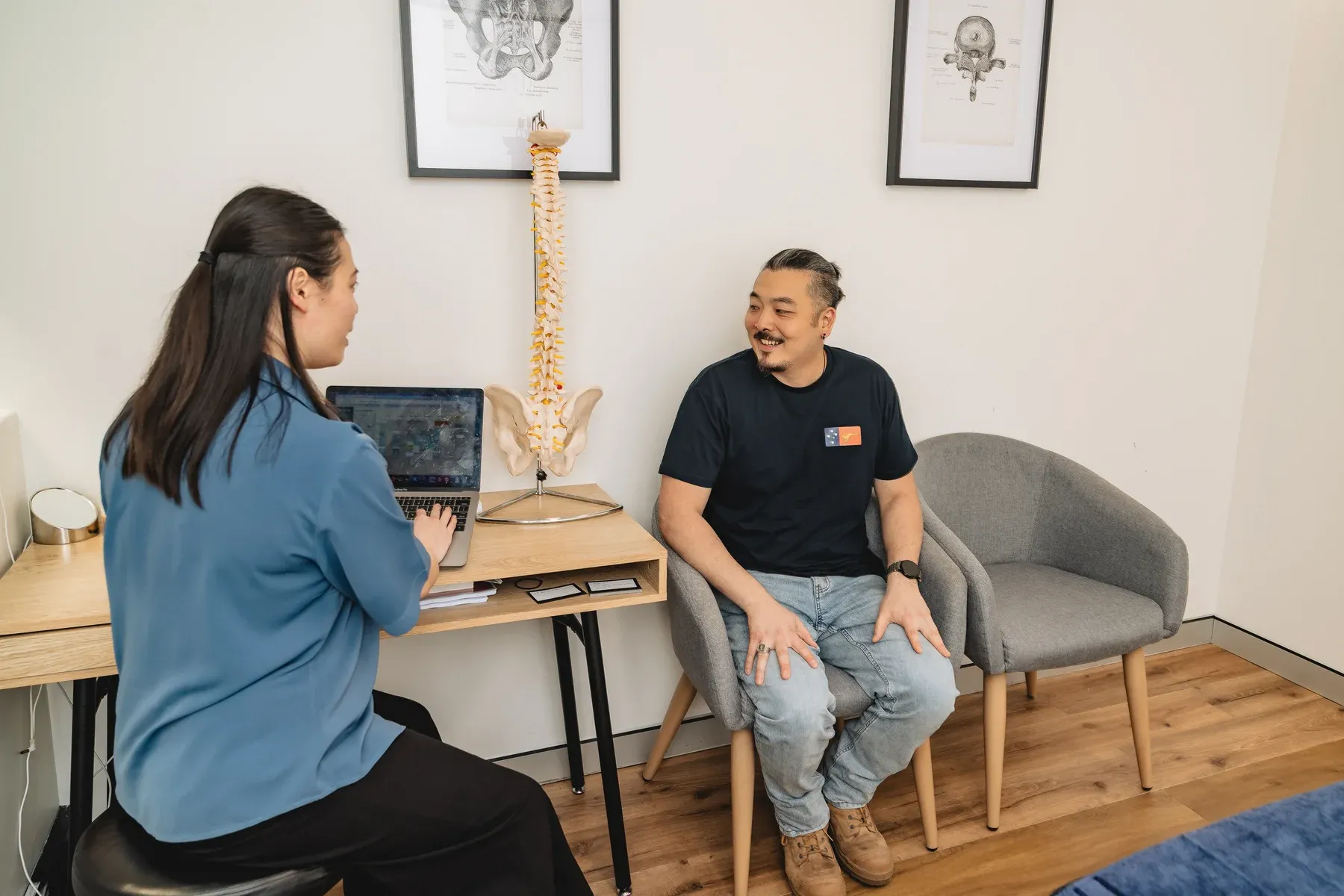
“Tech neck” is an informal name for neck or shoulder discomfort associated with long periods at computers, phones and other screens; it is not a medical diagnosis. A useful desk setup brings the screen to a comfortable viewing height, keeps frequently used equipment within easy reach and makes regular movement easy. The goal is a workstation that fits you—not one rigid “perfect” posture.
Start with the work, not a posture rule
A desk can look ergonomic and still be uncomfortable if it does not suit your body, eyesight or tasks. Reading, typing, drawing, video calls and using two screens each create different demands. Your setup also needs to change when you move between the office, home and a Chatswood hot desk.
Screen use is only one possible contributor to neck discomfort. Sleep, stress, workload, vision, an injury, physical activity and an underlying health condition can also matter. Our complete guide to back, neck and posture concerns in Chatswood explains why an assessment considers the whole picture rather than blaming one position.
Australian workplace guidance recommends adjustable equipment, a screen around an arm’s length away, easy-to-reach input devices, frequent position changes and regular breaks.12 Use the checklist below as a starting point, then adjust it for comfort and the work you actually do.
The practical desk setup checklist
Copy, print or save this checklist. Work from the chair outwards and change one element at a time.
Chair and feet
- My chair is close enough to the desk that I do not lean or reach forwards to work.
- My shoulders can relax rather than lifting towards my ears.
- The backrest supports my lower back without forcing me into an uncomfortable shape.
- My thighs feel supported without pressure behind my knees.
- My feet rest securely on the floor or on a stable footrest.
- Armrests do not stop me moving close to the desk or push my shoulders upwards.
Desk, keyboard and mouse
- My elbows stay near my sides when I type or use the mouse.
- My forearms are approximately level with the desk or angle slightly down towards the keyboard.
- My wrists feel relaxed rather than sharply bent up, down or sideways.
- The keyboard is directly in front of me and close enough that I do not reach.
- The mouse sits beside the keyboard at the same level, not far out to one side.
- Frequently used items—phone, notebook, water and documents—are within easy reach.
- I have enough clear space under the desk to change leg position.
Screen and visual comfort
- My main screen is directly in front of me.
- The screen is roughly an arm’s length away, then adjusted for its size and my vision.
- The top of the visible screen is around eye level or slightly below, so I can read without repeatedly lifting or dropping my chin.
- Text is large enough to read without leaning towards the screen.
- Brightness and contrast feel comfortable for the room.
- Windows and lights do not create distracting glare or reflections.
- If I wear multifocal glasses, the screen height lets me look through the correct part of the lens without tipping my head back.
Work habits
- I have a prompt to change position or move at least every 30 minutes.
- I regularly look away from the screen and focus into the distance.
- I vary tasks when possible instead of typing or using the mouse continuously for hours.
- I take calls without trapping the phone between my ear and shoulder.
- I finish lunch away from the desk when the workday allows.
- I know who to contact if I need an equipment adjustment or workplace ergonomic assessment.
This is not a pass-or-fail test. A fixed-height desk, shared chair or disability may make some items impractical. Focus first on the changes that remove obvious reaching, twisting or visual strain, and ask your employer about adjustments that cannot be made safely with the available equipment.
Adjust the workstation in the right order
Changing the screen first can create a new problem at the keyboard. A simple order makes the process easier.
1. Set the chair for the desk
Move the chair close to the desk. Adjust its height until the keyboard and mouse can be used with relaxed shoulders and elbows near your sides. If that leaves your feet unsupported, add a stable footrest rather than lowering the chair and reaching up to the desk.
Then adjust the backrest so it supports you comfortably. You do not need to sit bolt upright or hold your shoulder blades squeezed together. A sustainable position should allow you to breathe, type and shift without effort.
2. Bring the keyboard and mouse to you
Place the keyboard directly in front of the body area doing the typing. Keep the mouse close beside it. Reaching forwards or sideways for thousands of small movements can be more relevant than whether your spine matches an idealised diagram.
If you rarely use the number pad, a shorter keyboard may allow the mouse to sit closer. Keyboard shortcuts can also reduce repeated mouse use. These are options, not required purchases.
3. Position the main screen
Start at about an arm’s length, then adjust for screen size, text size and vision. Position the top of the screen around eye level or slightly below. The most important screen should be in front of you rather than off to one side.
Avoid solving small text by leaning forwards. Increase the font size or display scaling first. If you wear prescription or multifocal lenses, an optometrist may help if clear viewing requires a persistent head tilt.
4. Add documents, calls and secondary equipment
Place frequently read documents on a holder near the screen instead of flat on the desk if looking down repeatedly is uncomfortable. Use a headset or speaker for frequent calls, subject to privacy and workplace requirements. Keep equipment you use occasionally further away so the main work area stays clear.
Laptop setup: separate the screen from the controls
A laptop joins the screen and keyboard, so raising the screen also raises the keyboard. For brief use, the easiest improvement may simply be to work at a table rather than on a couch or bed and to change position often.
For prolonged laptop work:
- Place the laptop on a stable stand or riser so the screen reaches a comfortable height.
- Connect a separate keyboard and mouse.
- Bring the keyboard and mouse close enough to keep the elbows near your sides.
- Increase display scaling if you still lean in to read.
- Use a separate monitor if the laptop screen is too small for the task.
Do not balance a laptop on an unstable pile of objects. WorkSafe Queensland recommends a separate monitor, keyboard and mouse for prolonged laptop or tablet use.3
Dual monitors: let usage decide the layout
If one screen is used most of the time, place it directly in front and put the secondary screen beside it. If both are used equally, place them together at a similar height, angle them slightly towards you, and sit near the centre.
Move windows and applications as well as hardware. A document used for most of the day belongs on the main screen; repeatedly turning towards a secondary screen defeats an otherwise tidy setup.
Phone and tablet habits away from the desk
The best monitor setup will not change the time spent looking down at a phone on the train, sofa or kitchen bench. You do not need to hold a device at eye level all day, but you can reduce long, fixed periods in one position.
- Rest your forearms on a table, bag or armrest when reading for a while.
- Bring the device closer to your line of sight rather than dropping the head for the entire session.
- Use voice input for some long messages if practical and private.
- Prop a tablet on a stable stand for viewing; use a separate keyboard for longer typing.
- Change hands and positions instead of always holding the phone on one side.
- Put the device down between tasks rather than keeping it in a fixed viewing position.
On a Chatswood commute, the most realistic improvement may be to split a long scrolling or reading session with a few minutes looking ahead, standing or walking after leaving the train. Small changes that fit the day are more useful than rules you will abandon.
Movement is part of the workstation setup
No chair removes the need to move. SafeWork NSW recommends standing and moving every 30 minutes during sedentary work, as well as varying tasks and positions.4 Treat 30 minutes as a practical reminder, not a promise that symptoms begin at minute 31.
Choose prompts already built into your work:
- stand when a meeting changes or a call begins;
- refill water between focused work blocks;
- walk to speak with a colleague when appropriate;
- alternate sitting and standing for suitable tasks;
- place the printer or bin away from the desk; or
- use a quiet calendar or device reminder if work regularly absorbs your attention.
For visual breaks, Comcare suggests the 20-20-20 rule: every 20 minutes, look at an object about 20 feet away for 20 seconds.2 The exact distance is less important than giving your eyes a regular change of focus. Blink normally and adjust text size and glare rather than straining to see.
If you already have neck pain, generic online stretches are not automatically the missing piece. Research suggests neck and shoulder strengthening may reduce pain and disability in office workers with chronic neck pain, but the certainty of evidence is low and programmes should suit the individual.5 An assessment can identify appropriate movement or exercise rather than prescribing the same routine to everyone.
A 60-second reset for a shared or hot desk
Use this sequence whenever you change workstations:
- Sit close and set the chair height so your shoulders can relax at the keyboard.
- Support your feet on the floor or a stable footrest.
- Bring the keyboard and mouse close and clear the space beneath the desk.
- Centre the main screen, place it about an arm’s length away and adjust its height.
- Increase text size and reduce glare before leaning forwards.
- Set a movement cue for the first half-hour of work.
Take a photo of a comfortable setup—with no confidential information visible—so it is quicker to recreate next time.
What a desk adjustment can and cannot solve
A workstation change may reduce unnecessary reaching, twisting and fixed screen time. It cannot prove that the desk caused your symptoms, repair an injury or rule out another health condition. A visually “correct” setup also cannot compensate fully for excessive workload, few breaks, stress, poor sleep or tasks that require long static periods.
Speak with your manager, health and safety representative or workplace team if the job design prevents regular breaks or the equipment cannot be adjusted to your needs. If discomfort persists, our neck pain and posture correction pages explain what an individual assessment may consider.
When neck discomfort needs medical advice
Healthdirect advises seeing a doctor if neck pain is severe, getting worse, not easing within a few weeks, causing distress or affecting daily life.6
Call 000 if neck pain begins after a traumatic accident, is suddenly severe, or occurs with chest pain, shortness of breath or sweating. Seek urgent care if neck pain occurs with fever, vision or hearing changes, numbness or pins and needles, weakness in the arms or legs, dizziness or loss of balance, confusion, or bowel or bladder problems.6
Do not keep adjusting the desk or exercising through those symptoms.
Common questions about tech neck and desk setup
Is tech neck a medical diagnosis?
No. “Tech neck” is a convenient phrase for discomfort people associate with looking at screens, often around the neck, shoulders or upper back. Similar symptoms can have different causes, so the label cannot identify which tissues are involved or what care is suitable.
Is there one correct sitting posture?
No single position needs to be held all day. A useful starting position keeps equipment easy to reach and feels relaxed, but regular variation matters. Even a comfortable posture can become uncomfortable when held for too long.
Should the top of my monitor be exactly at eye level?
Use eye level or slightly below as a starting point, then adjust for screen size, vision and glasses. You should be able to read the main area of the display without repeatedly lifting or dropping your chin, leaning forwards or looking through the wrong part of a multifocal lens.
Will a standing desk fix neck pain?
Not by itself. A standing desk creates another working option, but standing still for long periods is also a static posture. Set the screen, keyboard and mouse appropriately in both positions and alternate based on comfort and the task.
When should I ask for a workstation assessment?
Ask when equipment cannot be adjusted to fit, symptoms recur during work, a medical condition or disability creates specific needs, or you are unsure how to arrange specialised equipment. If pain continues outside work or affects sleep and daily activity, a clinical assessment may also be appropriate. See what to expect at an appointment.
What this article cannot determine
This checklist is general information. It cannot diagnose the cause of neck or shoulder symptoms, confirm that screen use is responsible, prescribe an exercise programme, or replace workplace safety duties and individual medical advice. Adjustments should account for your body, vision, tasks, equipment and any existing health condition.
How Body Therapy Chiropractic can help
If neck, shoulder or upper-back discomfort keeps returning despite a better desk setup, an assessment can work out how much is workstation load and how much is joint and muscle function that needs addressing directly.
At our Chatswood clinic, an appointment with James Zheng (Chiropractor) follows the same structure for everyone:
- A thorough history - what is bothering you, how it started, your work and activity levels, and any past injuries or health conditions. If you bring scans, reports or a referral, we review them with you.
- A physical and movement assessment - your posture, movement and the areas involved in your complaint, testing how the joints and muscles are working, so care is based on findings rather than guesswork.
- An explanation before anything is done - we talk you through what we have found and what we recommend, in plain language, in English, Mandarin or Cantonese. You will have time to ask questions, and nothing proceeds without your agreement.
- Care where it is appropriate - chiropractic adjustments combined with soft-tissue therapy, with around ten minutes of massage-based muscle work part of every session.
- A personalised care plan - with practical advice such as exercises, ergonomic changes or activity adjustments, so progress continues between visits.
We will also say when chiropractic care is not the right answer. Numbness, pins and needles, arm weakness, or pain that is severe or not improving needs medical assessment first, and we will refer rather than begin a care plan.
Book an appointment, or read more about what to expect at a first visit.
Make the easiest useful change today
Start with the change you can feel immediately: bring the mouse closer, enlarge the text, centre the main screen or set a prompt to stand. Then observe whether work feels more comfortable over several days. A workstation should support your work and make movement easier; it should not turn the workday into an eight-hour posture test.
References
Footnotes
-
Safe Work Australia. Setting up your workstation: manage the risk of musculoskeletal disorders. Infographic, July 2023; accessed 12 August 2026. ↩
-
Comcare. Computers and workstations. Last reviewed 2026; accessed 12 August 2026. ↩ ↩2
-
WorkSafe Queensland. Setting up your workstation. Accessed 12 August 2026. ↩
-
SafeWork NSW. Sedentary work. Accessed 12 August 2026. ↩
-
Jones LB, Jadhakhan F, Falla D. The influence of exercise on pain, disability and quality of life in office workers with chronic neck pain: a systematic review and meta-analysis. Applied Ergonomics. 2024;117:104216. ↩
-
Healthdirect Australia. Neck pain. Accessed 12 August 2026. ↩ ↩2